
Power policies
One policy decides when every PC sleeps.
Set your business hours, a power scheme for them and a stricter one for everything else. Add maintenance windows and the processes that must never be interrupted. Assign it once, and every PC it covers follows it.
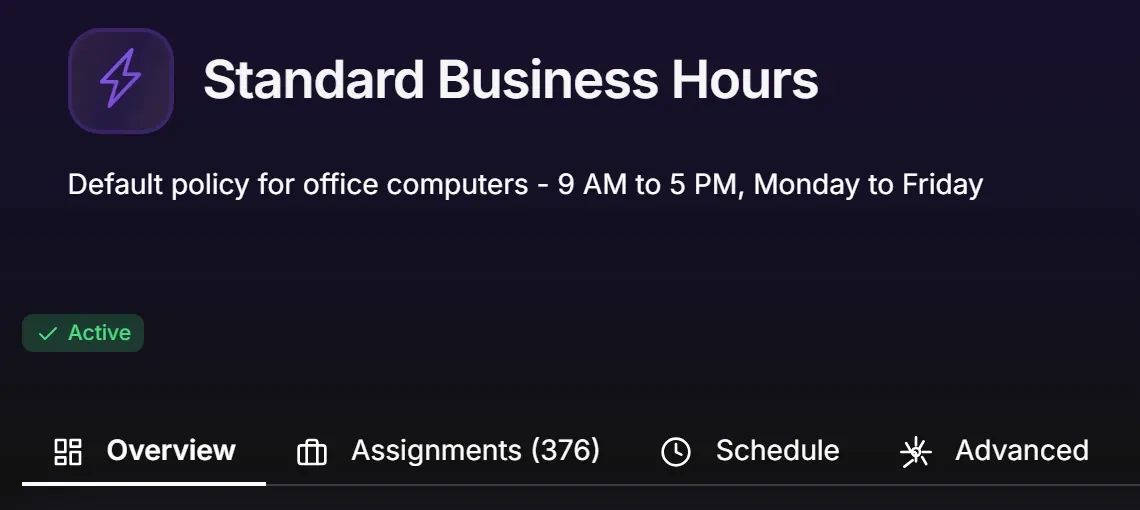
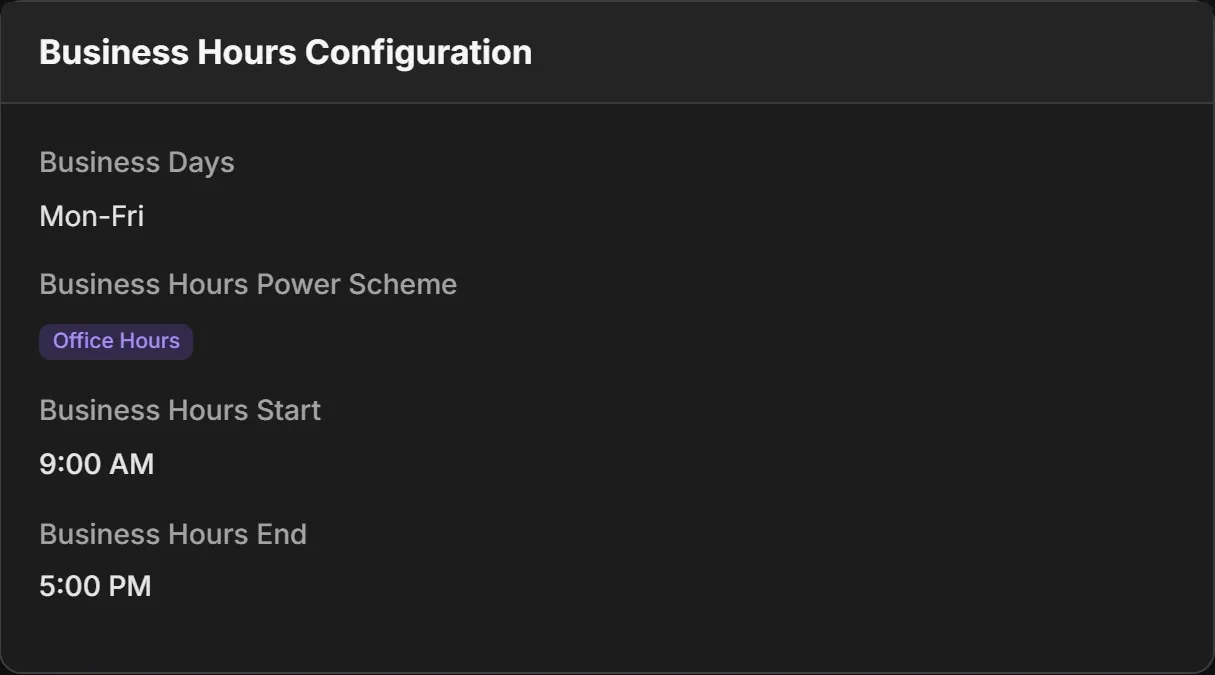
Business hours and after hours
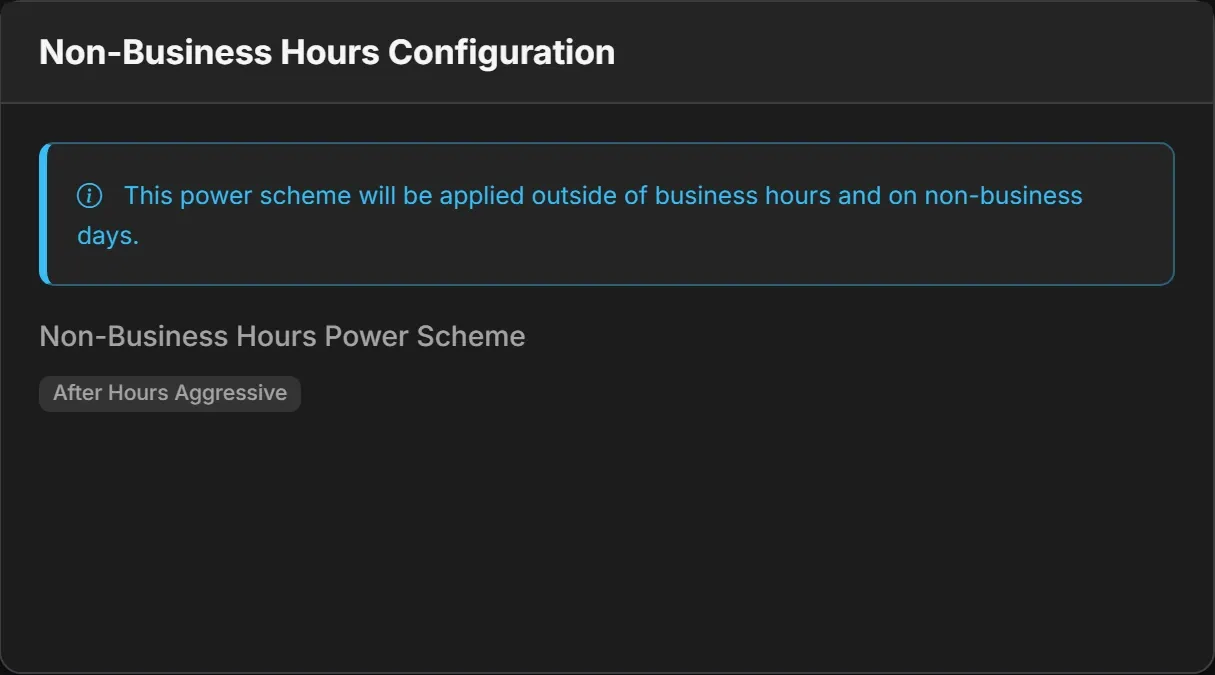
Two schemes. Acquaintia switches between them.
During business hours PCs run a scheme that suits the working day. When the day ends they switch to an after-hours scheme that sends idle machines to sleep quickly. Each scheme sets its own timeouts for the monitor, disks, sleep and hibernate, on mains and on battery, and can lock, log off or shut down an idle PC.
Never interrupts
Idle PCs sleep. Work in progress doesn't stop.
Putting PCs to sleep only works if nobody notices. Before Acquaintia acts on a PC, it checks five things.
What's on screen
- 0:00 Idle PCs sleep. This one’s mid-backup.
- 0:03 Name the work that mustn’t stop. While it runs, the PC won’t sleep, shut down or lock.
- 0:09 Then it sleeps too, once the job is done.
- 0:11 Acquaintia. Idle PCs sleep. Critical work doesn’t.
-
Someone is at the keyboard
Idle means no keyboard or mouse input for the time you set, measured in every signed-in session.
-
Windows says work is in progress
Downloads, updates and video playback hold a PC awake the way Windows intends.
-
A presentation or call is running
Presentation Mode starts by itself for PowerPoint, Teams, Zoom, Webex and VLC, or from the tray.
-
A critical process is running
List the processes that must finish, such as backup.exe, and the PC will not sleep, hibernate, shut down or lock while one runs.
-
The battery is low
When a laptop battery runs low, Acquaintia pauses its own sleep and hibernate actions and leaves the battery to Windows.
-
If something keeps a PC awake for longer than you think it should, you can set a limit, after which it sleeps anyway.
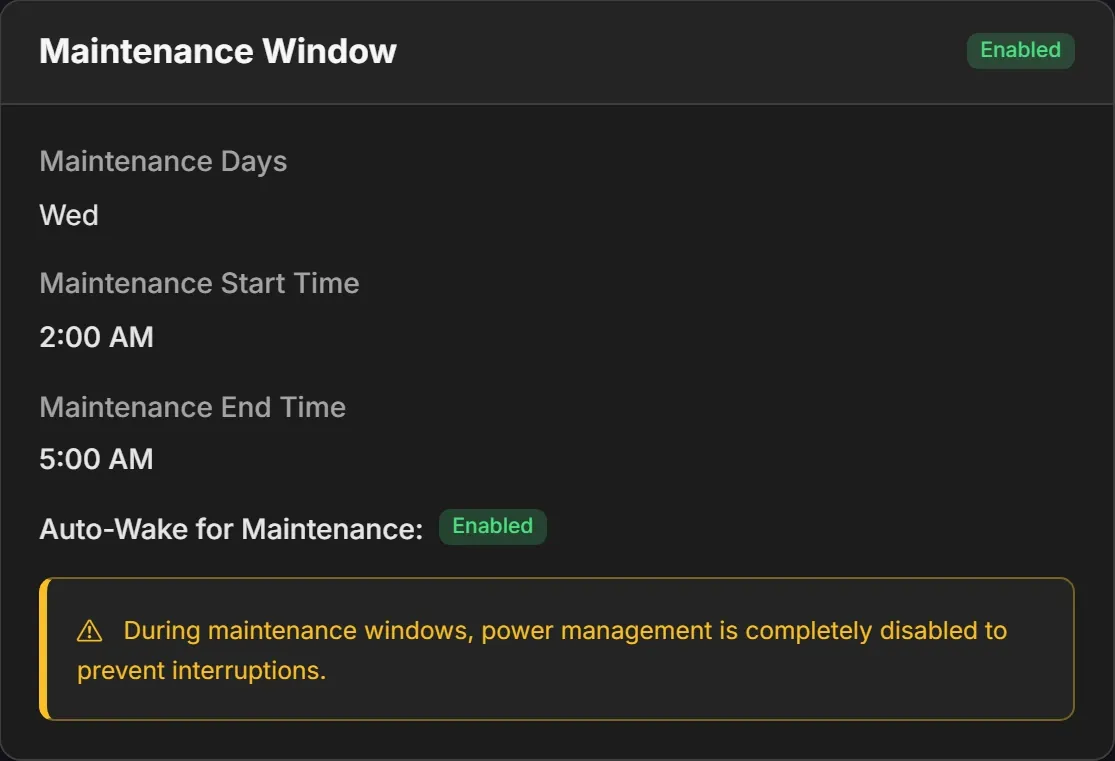
Maintenance windows
Awake for patching, asleep the rest of the night.
Give each policy a maintenance window: the days and hours when updates and backups run. PCs stay awake through it, and Acquaintia can wake them at the start of it so nothing waits for the morning.
The rest of the policy
Everything a PC does with its power, in one place.
End of the day
When business hours end, sleep, hibernate, log off or shut down the PCs still on. Anyone still working gets five minutes' warning and can put it off for an hour.
Lids and buttons
Decide what closing a laptop lid, pressing the power button or pressing the sleep button does, on mains and on battery.
What users can do
The Acquaintia tray app gives people sleep, hibernate and shut down, if the policy allows each one, and a way into Presentation Mode.
Assigned by rule, not by hand
Policies follow locations and groups, and rules place each PC by criteria such as IP range, Active Directory OU or group, and hardware model, so new PCs land in the right place without anyone sorting them.
Questions
Does Acquaintia replace Windows power plans?
It manages them. Each policy applies a power scheme with the timeouts you choose, and switches from the business-hours scheme to the after-hours scheme when the working day ends.
What counts as idle?
A PC is idle when nobody has used its keyboard or mouse for the time the policy sets, five minutes by default. Acquaintia reads this in each signed-in session, so a PC with anyone at it is never idle.
Can different sites keep different hours?
Yes. Create a policy for each set of hours and assign it to the locations or groups that keep them. A PC takes its policy from the rules you set, so new machines pick up the right one.
Can people override a policy?
As far as you allow. The tray app offers sleep, hibernate and shut down only when the policy permits them, and anyone still working at the end of the day can put the end-of-day action off for an hour.
Set it once. Every PC follows.
Book a demo and we'll build a policy around your working hours, with your backup and patching windows in it.